
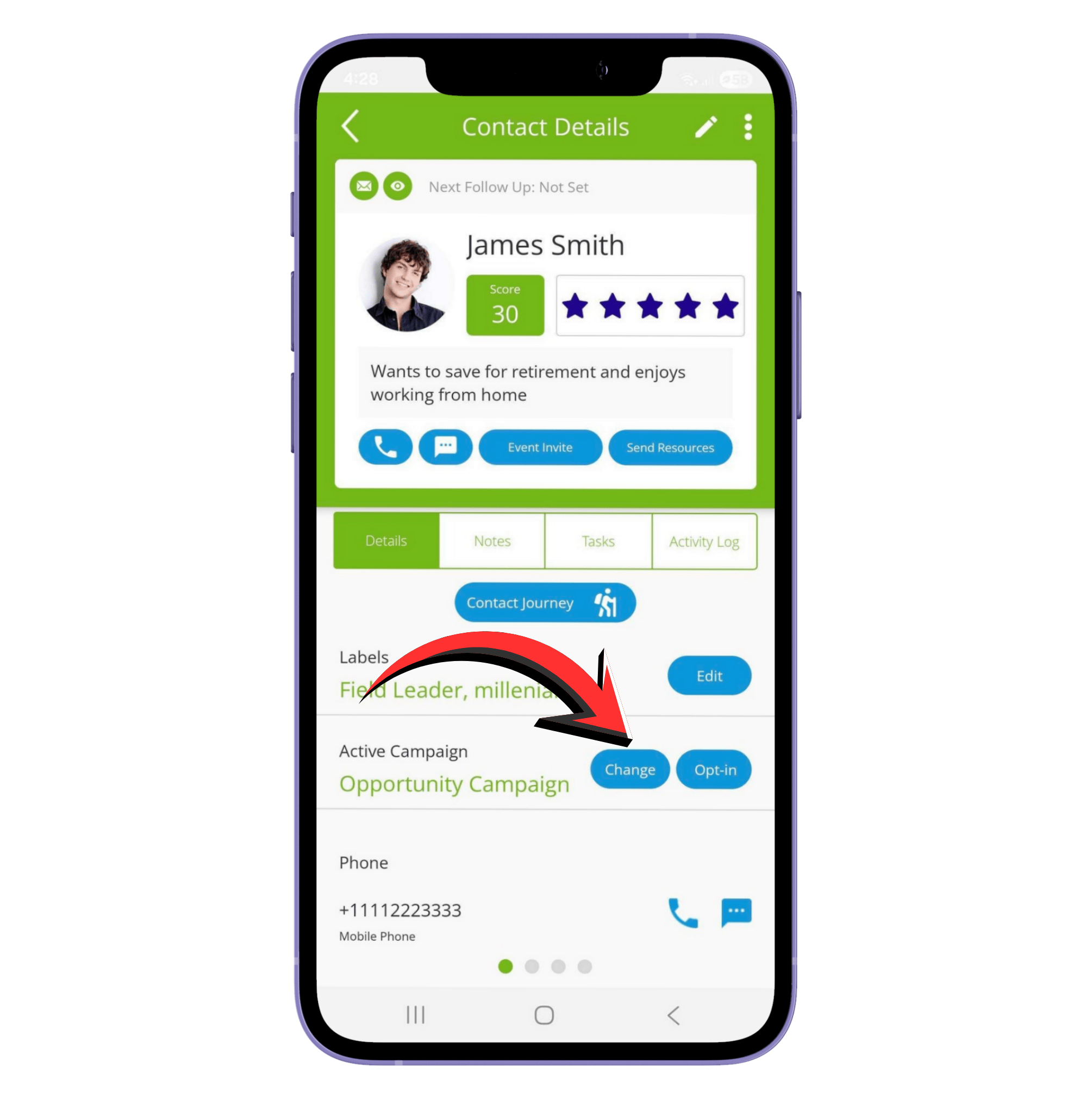
Q1: Who should I add to a campaign?
Add a contact if you’ve shared resources with them before and they haven’t made a decision or said it’s not the right time. Email campaigns help you stay in touch over time. The emails are already in the app. When your contact clicks a link, you get a notification. You can also check the Activity Log to see what they’ve opened. This helps you know when to follow up.
Q2: How do I add a contact to a campaign?
- Open the app → go to Contacts.
- Tap the contact you want.
- Scroll to Details → make sure they have an email address.
- Find Active Campaign → tap Change.
- Select the campaign → tap Assign.
- Tip: Choosing None removes the contact from any campaign.
Q3: Can I change a contact’s campaign later?
Yes! Follow the same steps in Q2 to change a campaign anytime. Note: If the contact hasn’t opted in yet, changing the campaign will send the opt-in email.
Q4: What if the contact misses the opt-in email?
You can resend the opt-in email by tapping Opt-in in the campaign section for that contact.
Q5: How do I see the campaign emails and schedule?
- Open the app → tap Campaigns on the home screen.
- Tap the campaign you want to check.
- You’ll see all emails with their subject lines.
- Tap a subject line → see the email copy and frequency/order.
Did we answer your question? If you need more help, please tap the chat icon, and we’ll be happy to assist you.