
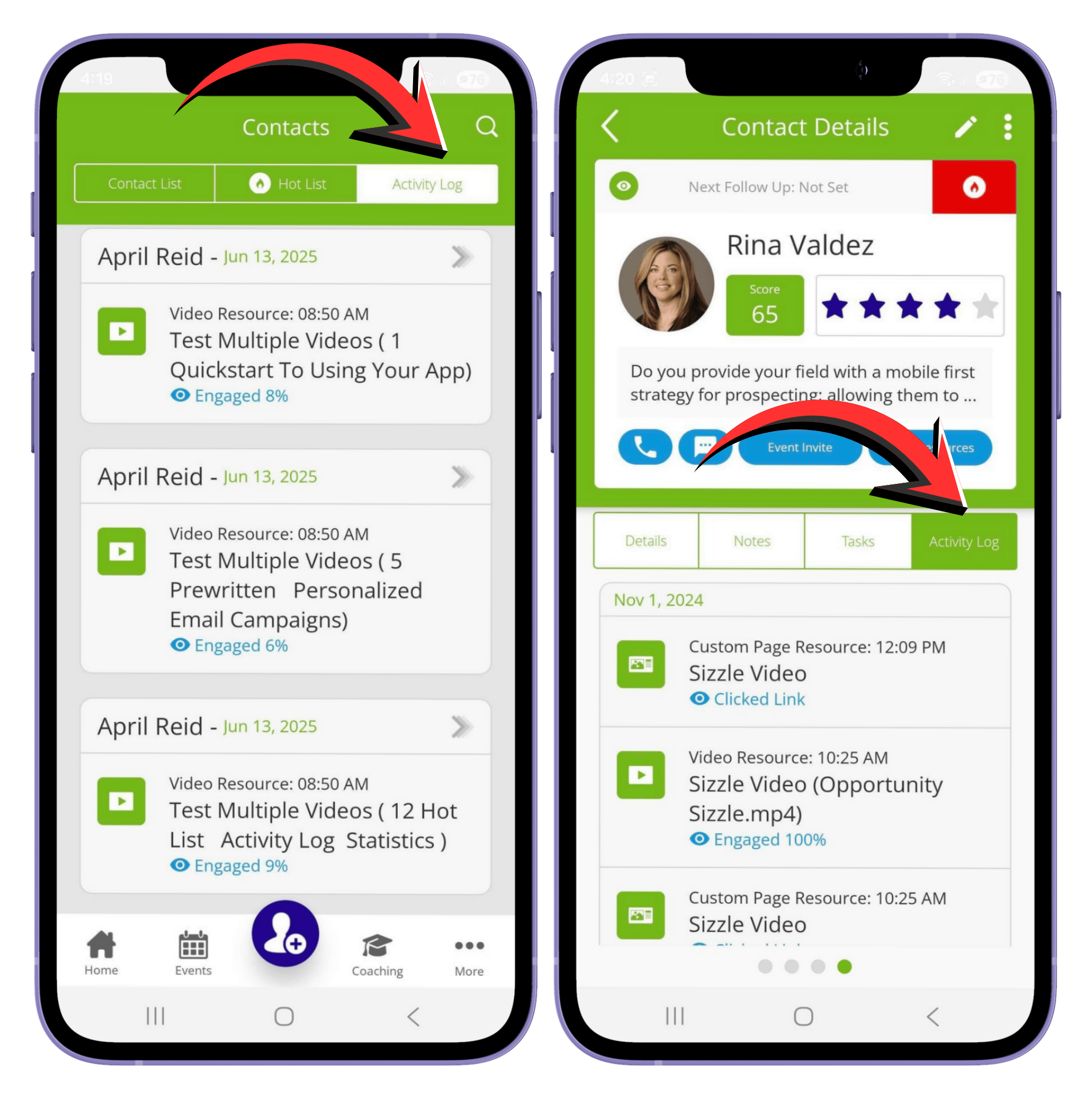
Q1: What is the Activity Log?
The Activity Log shows everything your contacts have done with the content you’ve sent—like resources, campaign emails, or event invites. It includes:
- Date and time the content was sent, clicked or viewed
- Status of the action (opened, clicked, watched, etc.)
- How it was sent (email, text, or social)
Q2: Where can I see my contacts’ activity?
You can view activity in two places:
1. Recent activity for all contacts
- Shows the most recent 50 contacts who engaged with, viewed, or clicked any content you sent.
- On the mobile app: go to Contacts → tap the Activity Log column on the Contacts page.
2. Individual contact activity
- Shows all activity for a single contact.
- On the mobile app: go to Contacts → Contact List → Select the contact → tap Activity Log on their Contact Details page.
Q3: How do I view activity on a web browser?
- Log in at app.rapidfunnel.com/login
- Click Contacts in the left menu.
- Click the contact’s first or last name.
- In the pop-up, click View/Edit.
- Scroll to the Activity Logs section on the Edit Contact page to see their actions.
Q4: What do the different Activity Log statuses mean?
- SENT – Content was successfully sent.
- OPENED – Contact opened the message but didn’t click links.
- CLICKED LINK – Contact clicked a link in the message or email.
- ENGAGED % – Contact watched a video (shows % watched).
- BOUNCED – Email delivery failed permanently.
- ACCEPTED – Contact accepted an event invite (“I’ll be there”).
- DECLINED – Contact declined an event invite (“Won’t make it”).
Did we answer your question? If you need more help, please tap the chat icon, and we’ll be happy to assist you.