
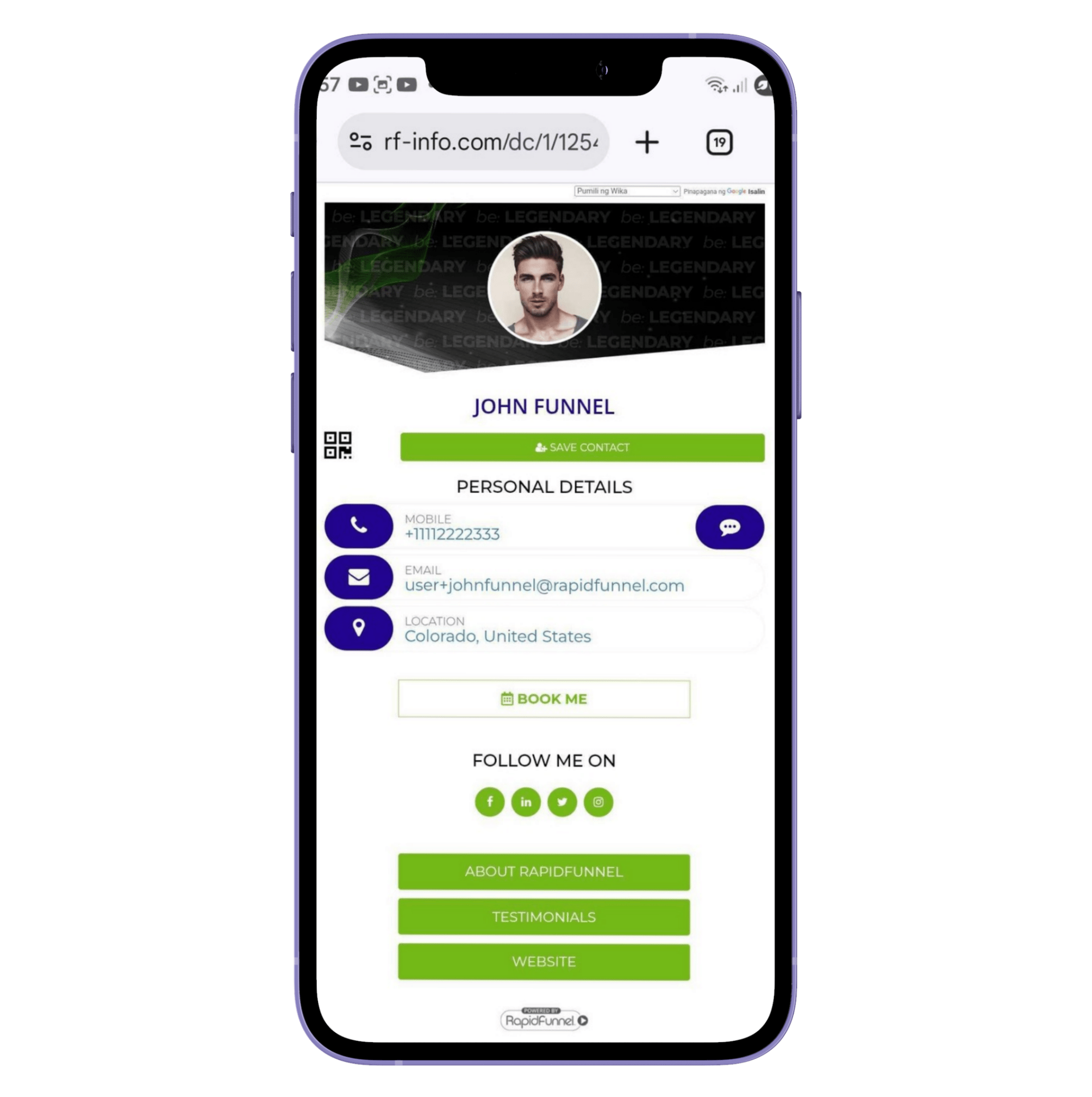
Q1: How can I send my Digital Business Card from the mobile app?
To send your card from the mobile app:
- Go to Contacts and select a contact from the list.
- Tap Send Resource. You’ll be redirected to the Resource Library, where MY CARD appears at the top.
- Tap the box next to MY CARD and choose how to send it: via text, email, or social media.
- Sending the card includes a pre-written message, which you can edit before sending.
Q2: How can I send my Digital Business Card from the web?
To send your card from the web:
- Log in at app.rapidfunnel.com/login and select Resources, where you’ll see MY CARD.
- Click the share icon and choose to send via Facebook, LinkedIn, Twitter, email, or copy the link.
- Note: The web version has limited sharing options, so for the best experience, we recommend using the mobile app.
Q3: How can I personalize my Digital Business Card?
If you only need to update basic information such as your name, email, phone number, display photo, or social media handles, you can do this directly from the mobile app by tapping More → Settings. From there:
- To update your contact information, tap Account Settings. Don’t forget to hit Save.
- To change your display photo, tap your profile image under Settings, upload or take a new photo, then click Save.
- To add or edit social media accounts, look for the social media fields (e.g., Facebook URL, Twitter URL), tap Edit, enter your link, and hit Save.
Q4: How can I add additional information or call-to-action buttons to my card?
To add information such as a website or extra call-to-action buttons, you’ll need to use the web:
- Log in and select Settings from the left navigation column.
- Click Manage Digital Business Card on the right. Your card will pop out on the screen.
- Look for the + Add Button, type the name you want for the button, and select the resource you want to link from the dropdown list.
- Don’t forget to hit Save.
- You can preview your changes by clicking Preview.
Did we answer your question? If you need more help, please tap the chat icon, and we’ll be happy to assist you.