
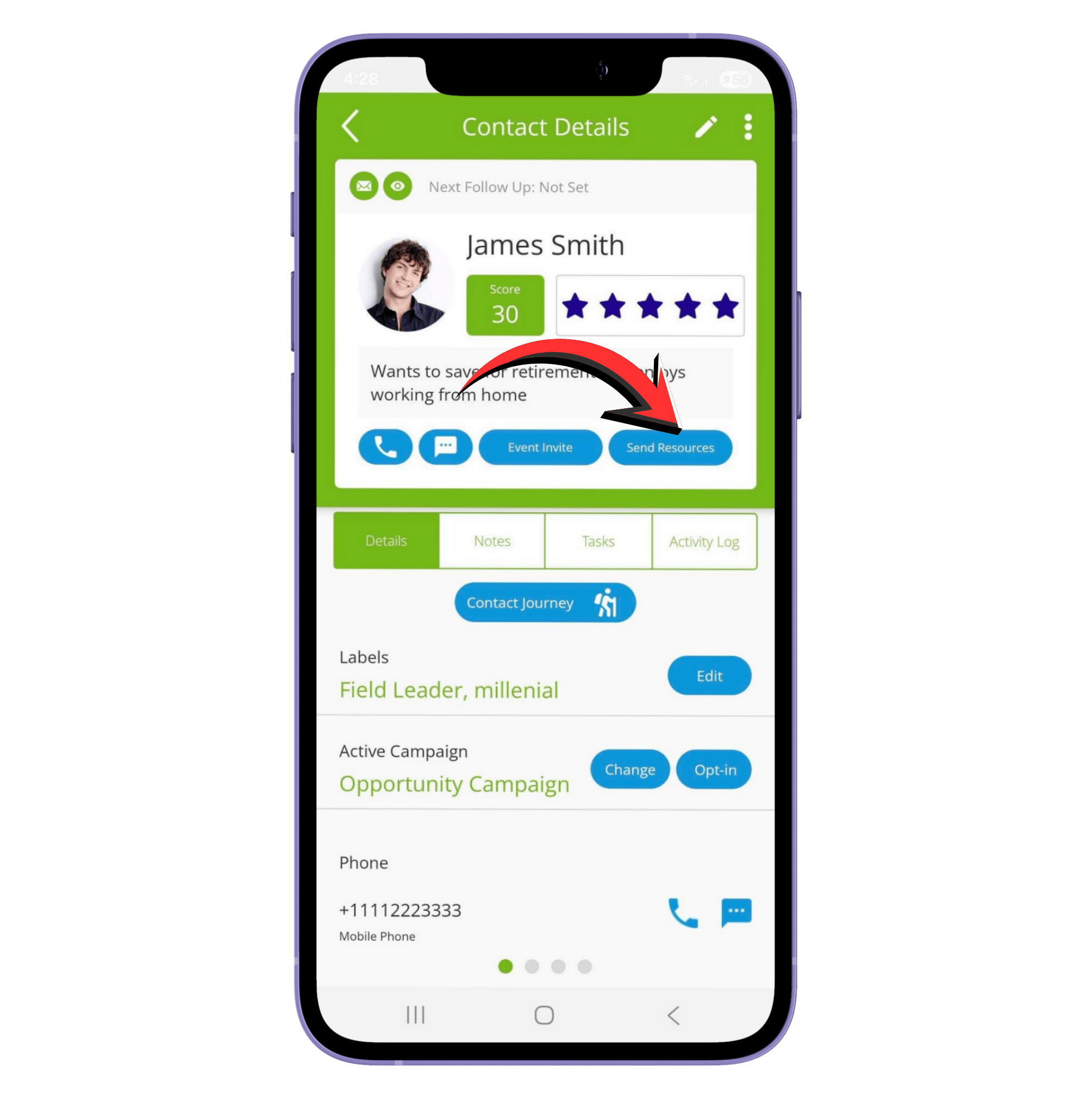
Q1: How do I send resources from the mobile app?
To track when a contact clicks a link, submits a form, or watches a video, make sure you send the resource from Contacts.
- Tap Contacts from the main menu and select the contact you want to send a resource to.
- On the Contact Details page, tap Send Resources.
- The Resources page will display different categories. Tap the plus (+) icon next to a category to view the resources inside.
- Tap the box next to each resource you want to send. You can select more than one resource.
- Choose how you want to send the resource:
- Email: Tap the email/envelope icon
- Text Message: Tap the conversation/text icon
- Social Media: Tap the share icon
- A pre-written message will appear. You can personalize the text, but do not change the links, as this may affect tracking.
- Send the message.
Q2: How do I send resources from a web browser?
You can also send resources from the web, but tracking works only when the contact is added to your Contacts list first.
- Log in to your account at https://app.rapidfunnel.com/login.
- From the left navigation menu, select Contacts.
- Select the contact you want to send a resource to.
- Under the Action column, click the arrow icon to send a resource.
- Choose how you want to share the resource.
- For Facebook, Twitter, or LinkedIn, choose a resource from the pop-out window.
- For email or copying the link, click Select Resource and choose a resource from the list.
- Edit the message as needed, making sure the resource link stays unchanged.
- Click Send.
Did we answer your question? If you need more help, please tap the chat icon, and we’ll be happy to assist you.